
The Shop Log page displays shops assigned to you, alongside additional useful information about your account.
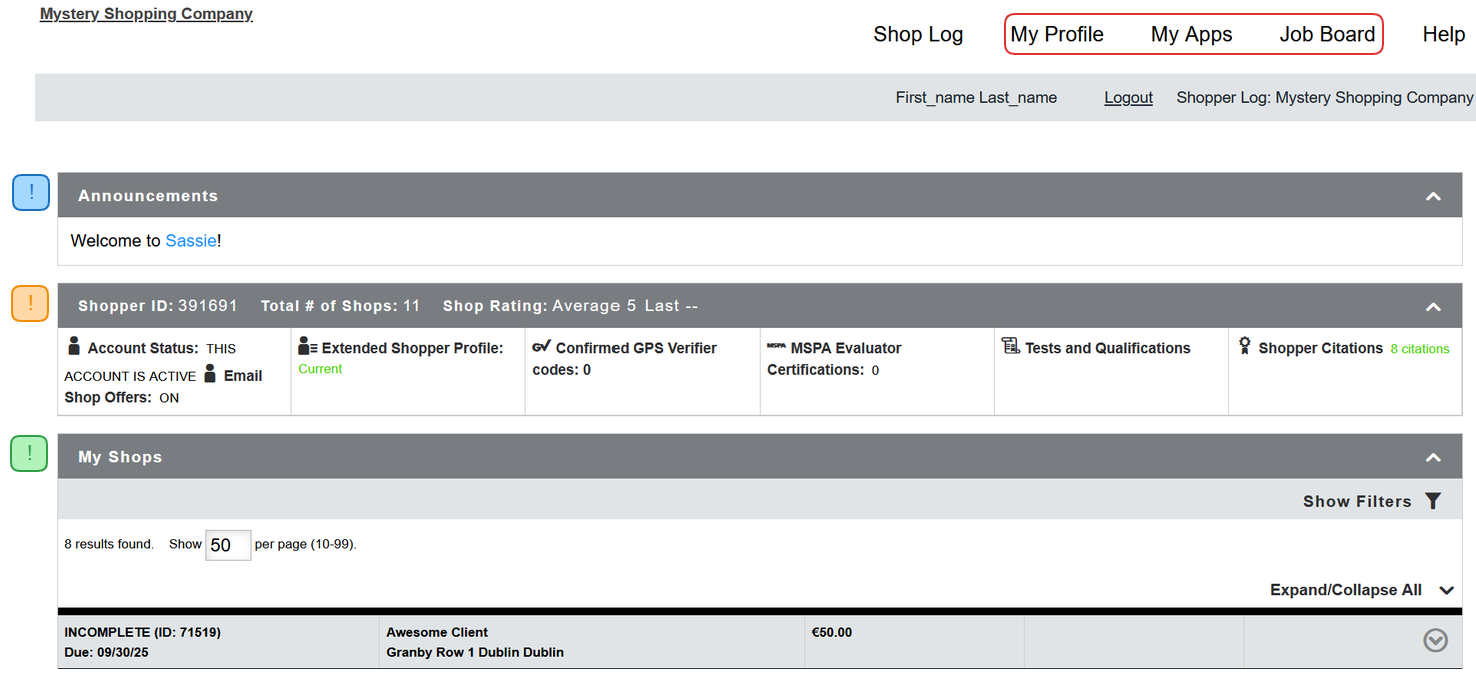
Use the buttons on the top right to fill in your profile information, check your Apps, and list the shops available through the Job Board.
Announcement
The Announcement widget will display any shopper announcements that might have been set. The widget will be closed upon loading the page, so make sure to use the icon on the right to open it.
Account info
This section lists information related to your shopper account. You can find and edit this information on your profile page as well.

The Shopper ID is your identification number for this Mystery Shopping Company.
Next to it, you can see the total # of shops you performed, your average shop rating, as well as the last shop grade you received.
The Account Status section displays whether your account is active, and have you opted in for shop offer e-mails. You can click on the section to reach the page where you will be able to change your account status, and opt in our out of e-mails.
The next box is the Extended Shopper Profile status. A warning will be displayed here if you are required to update your extended profile, and you can simply click on the box to be forwarded to the questionnaire.
The Confirmed GPS Verifier codes section displays the number of confirmed geoverifications on your account.
Any MSPA certifications that have been applied to your account will be displayed in the MSPA Shopper Certification section. Clicking on this box will expand the box, allowing you to enter legacy MSPA certification codes. Please keep in mind that newer MSPA certification codes are not supported.
The Tests and Qualifications section will display any qualifications you have earned on the Mystery Shopping Company's system. You can click on the box to see more details, and use a link to the Shopper Testing Center.
Shopper citations can be positive, negative, or neutral, and the number of citations on your account will be displayed to you in the Shopper Citations section. You can click on the box to view additional details.
My Shops
This section is a list of all shops assigned to you. From here you can view shop details, confirm shops, contact a scheduler, and view/submit shops.
Filtering your shops

You can filter your shops by job status, the dates, or per client the shop belonged to. Simply make your selection and use the GO button on the right.
Interacting with your shops
Click on the downward arrow to expand the shop and view its details.

The top right of the section displays the shop's ID, alongside the current status of the shop.
Shop Statuses
The most important statuses for you are:
- New
This shop has been assigned to you, but you have not entered any data. - Incomplete
You have started filling out the form, but you have not completed all required questions on the survey. - Completed
You have completed the shop fully by answering all the required questions. - Receive
Your shop is being reviewed or finalized by an administrator from the Mystery Shopping Company you shop for.
They may send you a shop grade and shop comments to let you know how you did on your shop.
This ONLY means that the shop is past the "Completed" status and is being handled by the MSP.
Shop Dates
Below the shop status is the shop date information. Depending on the Mystery Shopping Company, you might or might not be able to select, or update some of the dates.
The date types are:
- Start (optional)
This is the date on and after which you can do the shop.
The shop cannot be done before this date. - Due
This is the date you have to visit the location by and do the mystery shop. - Shopped
This is the date you performed the shop (as entered in the shop date question). - Submit Due
This is the date by which your fully completed survey is due. By this date, your shop should be in "Completed" status. - Submit
This is the date you submitted your shop into "Completed" status.
Shop Fees
The shop fees section list relevant fee info regarding the shop.
Fee is the amount you will be paid for doing the shop.
Expenses and Special Expenses, if there are any, is how much expenses you will be reimbursed for.
The Bonus amount, if entered, is how much bonus you can earn for the shop.
Shop Actions
The last two columns allow you to interact with the shop.
If there are any Comments additional to Guidelines, they will be displayed upon using the Comments button.
Help/Contact button will open a new page that allows you to contact the scheduler. You can read more in details about that here.
The Guidelines button will open a new page with the Mystery Shopping Company's guidelines for performing the shop.
Use the CONFIRM! button to confirm that you accept the shop.
Once confirmed, you can use the View/Submit button to open a new page to input the answers to the questionnaire. Upon completion, use the Complete Evaluation & Submit button at the bottom of the page.
When a shop is in an "Incomplete" status (opposed to "New"), the View/Submit buttons will be replaced with the Finish Shop one. It is functionally identical to the View/Submit button.